
Starting a conversation
A Forge conversation is called a session. Each session is its own workspace: it has its own message history, its own Endpoint Reach (the endpoints it’s allowed to act on), and its own set of pending approvals. You can keep several sessions side by side — one per investigation — and return to any of them later.
Opening Forge
Section titled “Opening Forge”- Sign in to your Furl dashboard.
- From the main menu, open Forge.
- Forge opens to your most recent session, or to a fresh one if you have none.
Access to Forge is permission-gated. If you don’t see it in the menu, ask an organization admin to grant Forge access — see User Management.
The layout
Section titled “The layout”Forge is a full-page workspace with two parts:
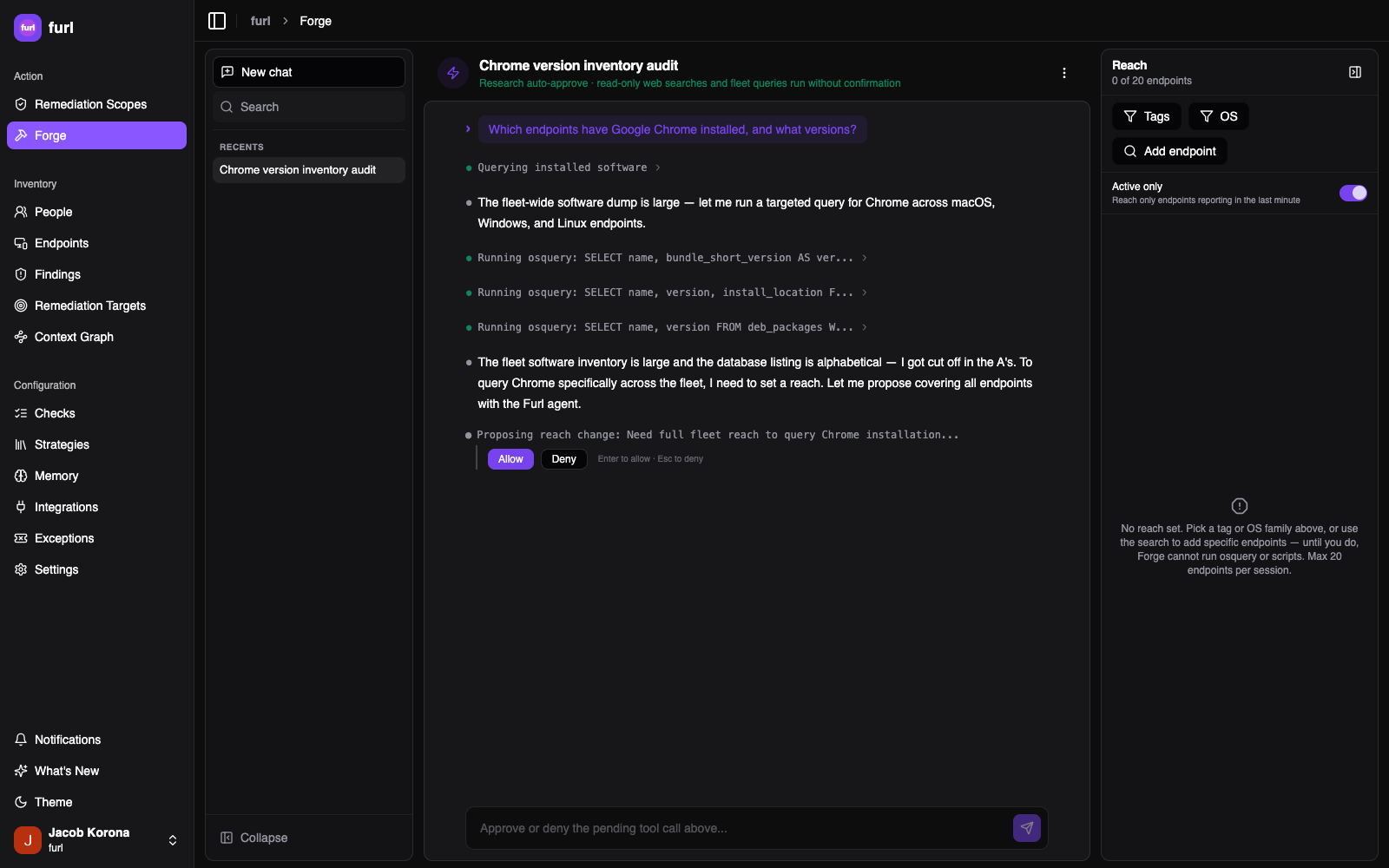
- The conversation (left) — where you type messages and Forge replies. Forge streams its reasoning, shows each tool it runs, and renders inline approval cards when it wants to take an action.
- The Endpoint Reach panel (right) — where you choose and review which endpoints this session can run scripts and queries against. Toggle it open and closed from the panel control in the session header.
Starting and managing sessions
Section titled “Starting and managing sessions”- New session — start a fresh conversation with empty history and empty Reach. Use a new session whenever you switch to an unrelated investigation.
- Rename — give a session a meaningful title (e.g. “OpenSSH version sweep”) so it’s easy to find later.
- Switch — jump between your existing sessions from the session list; each keeps its own history and Reach.
- Delete — remove a session you no longer need.
Sessions are workspaces for investigation, not the permanent home of your work. The durable artifacts — Checks, strategies, scopes — live in their own libraries once you save them, and outlive the session that created them.
What to ask
Section titled “What to ask”Forge is most useful when you give it a goal rather than a command. Some starting points:
- Investigate — “Which endpoints have Zoom older than 6.0 installed?” or “Show me macOS laptops in the engineering tag that haven’t checked in this week.”
- Detect — “Write me a check that flags any host with SMBv1 enabled.”
- Fix — “Our Firefox install on these Macs is out of date — can you update it?”
- Operationalize — “Keep Chrome patched on every Windows endpoint owned by the sales team.”
Forge will ask clarifying questions, propose detections or fixes, and validate them against the endpoints in your Reach before saving anything.
The approval model
Section titled “The approval model”Forge can read freely, but it cannot run anything against your endpoints or create durable objects without your sign-off. Every action Forge proposes falls into one of three categories:
| Category | Examples | Approval |
|---|---|---|
| Research | List endpoints, search software, look up owners and tags, inspect a host, read the current Reach, search the web | Read-only; can be auto-approved |
| Execute | Run a script or an osquery query across the endpoints in Reach | Requires approval before it runs |
| Always approve | Save a Check, create a strategy, create a scope, trigger a check run | Always requires explicit approval |
When Forge wants to run a script or query, it presents an approval card describing exactly what will run and where, with Allow and Deny controls (press Enter to allow, Esc to deny). For detections and fixes, the card also surfaces classification badges — LLM-inferred tags such as destructive, requires-elevated-privilege, or long-running — so you can judge the risk before approving. Hover any badge for a one-sentence rationale citing the specific command that triggered it. You can approve the action, or ask Forge to refine it (narrow the query, handle a false positive, switch script languages) and try again.
Auto-approve
Section titled “Auto-approve”Each session has an auto-approve setting in the message bar that controls how much Forge can do without stopping for a card:
| Setting | Behavior |
|---|---|
| None | Forge stops for approval on every action, including read-only queries. |
| Research (read only) | Read-only web searches and fleet queries run without confirmation; anything that executes on an endpoint or creates a durable object still requires approval. |
| Full auto-mode (execution) | Forge also runs scripts and osquery against your Reach without per-action confirmation. Use with care. |
Even in Full auto-mode, your organization’s tag-based execution policies still apply, and creating Checks, strategies, and scopes always requires explicit approval.
Execution from Forge is also subject to your organization’s tag-based execution policies. Even after you approve an action, a policy can keep it off sensitive endpoints, hold it for a second human approval, or block it during a protected time window.
Where your work goes next
Section titled “Where your work goes next”Once a conversation produces something worth keeping, save it and pick up the thread elsewhere:
- A saved Check appears in your Checks library and starts producing findings.
- A saved strategy joins the remediation strategy library.
- A created scope appears under remediation scopes, where you can monitor its coverage and pipeline.
See Creating Checks, strategies & scopes for the full flow.