
User Management
Administrators manage who can access your Furl organization, what role each member has, and whether new users on your domain are invited automatically.
Opening Manage Organization
Section titled “Opening Manage Organization”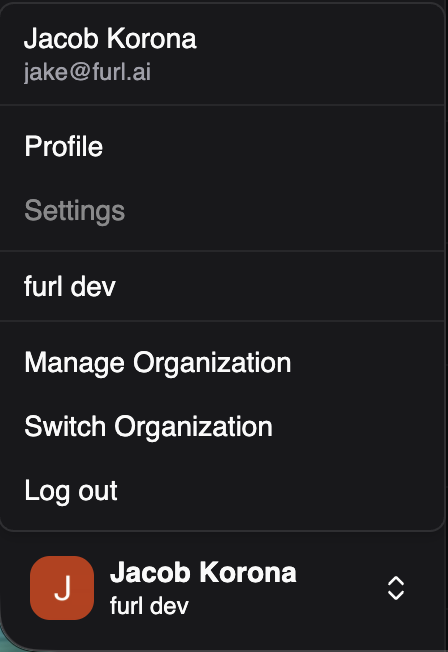
To open user management, click your profile at the bottom left of the Furl UI, then select Manage Organization.
Inviting and removing members
Section titled “Inviting and removing members”From the Invitations tab, admins can invite new members by email and remove existing members. When inviting someone, pick the role that matches the access they need — you can change a member’s role later from the same screen.
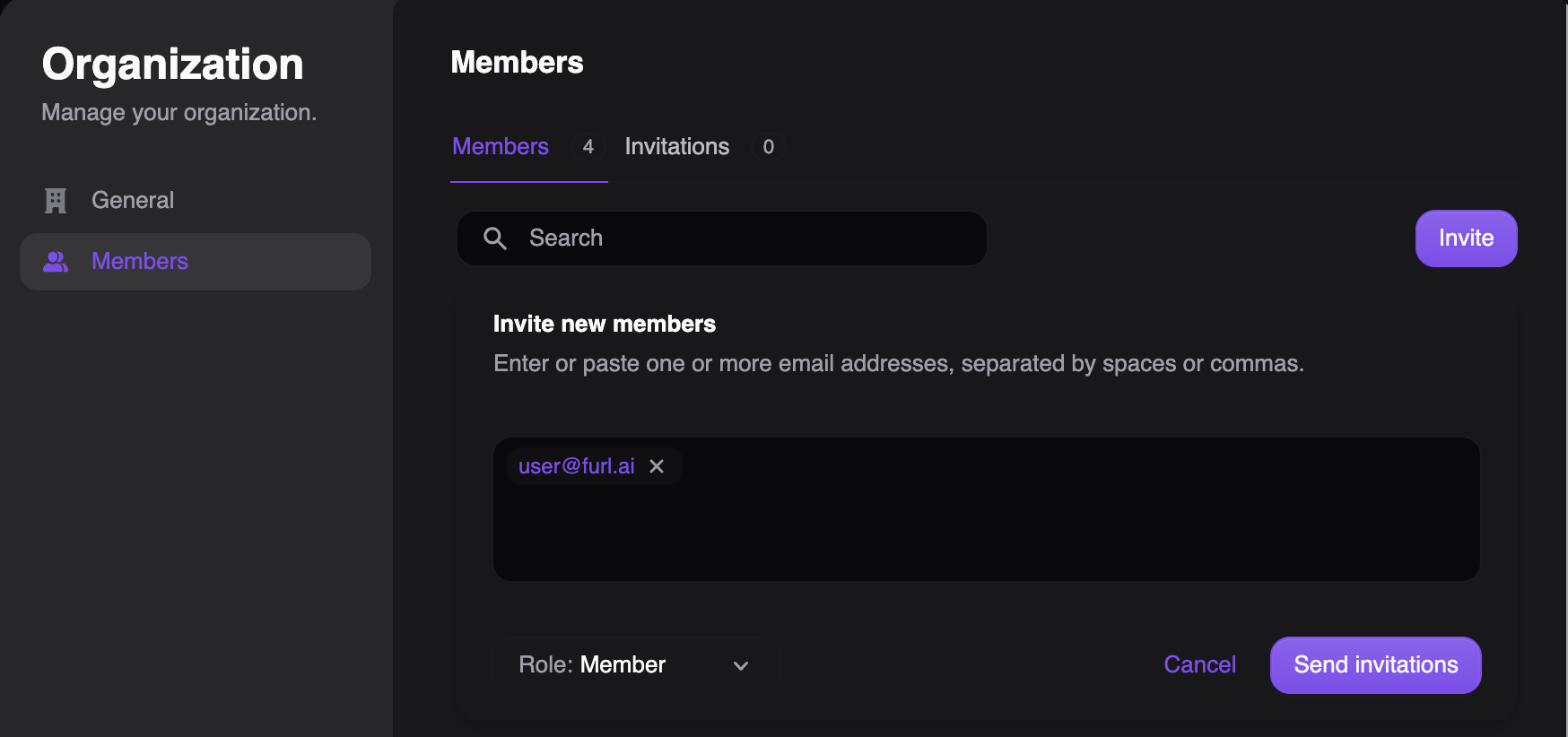
Invitees receive an email and go through the standard onboarding flow. See Get Started for what new users see when they accept.
Furl has three roles:
| Role | Access |
|---|---|
| Administrator | Full read, write, and execute access. Can invite and remove members, change roles, and configure the organization. |
| Read-only administrator | Read access to everything an administrator can see, but cannot make changes to the environment. |
| User Portal | Access limited to the user’s own end-user portal — no access to the rest of the Furl UI. |
Only administrators can change another member’s role or invite and remove users. Read-only administrators and user portal members cannot manage other members.
Automatic invitations
Section titled “Automatic invitations”Admins can opt to automatically invite users who sign in with an email address on your organization’s domain. When enabled, anyone who authenticates with a matching domain is provisioned into your organization with the default role you’ve selected, removing the need to invite each user by hand.
Configure automatic invitations from Manage Organization. Disable the setting at any time to return to invite-only access.